Settings
The Settings page (/settings) manages platform connections, data imports, and sync controls. Each integration displays a connection status badge (connected, disconnected, or error).
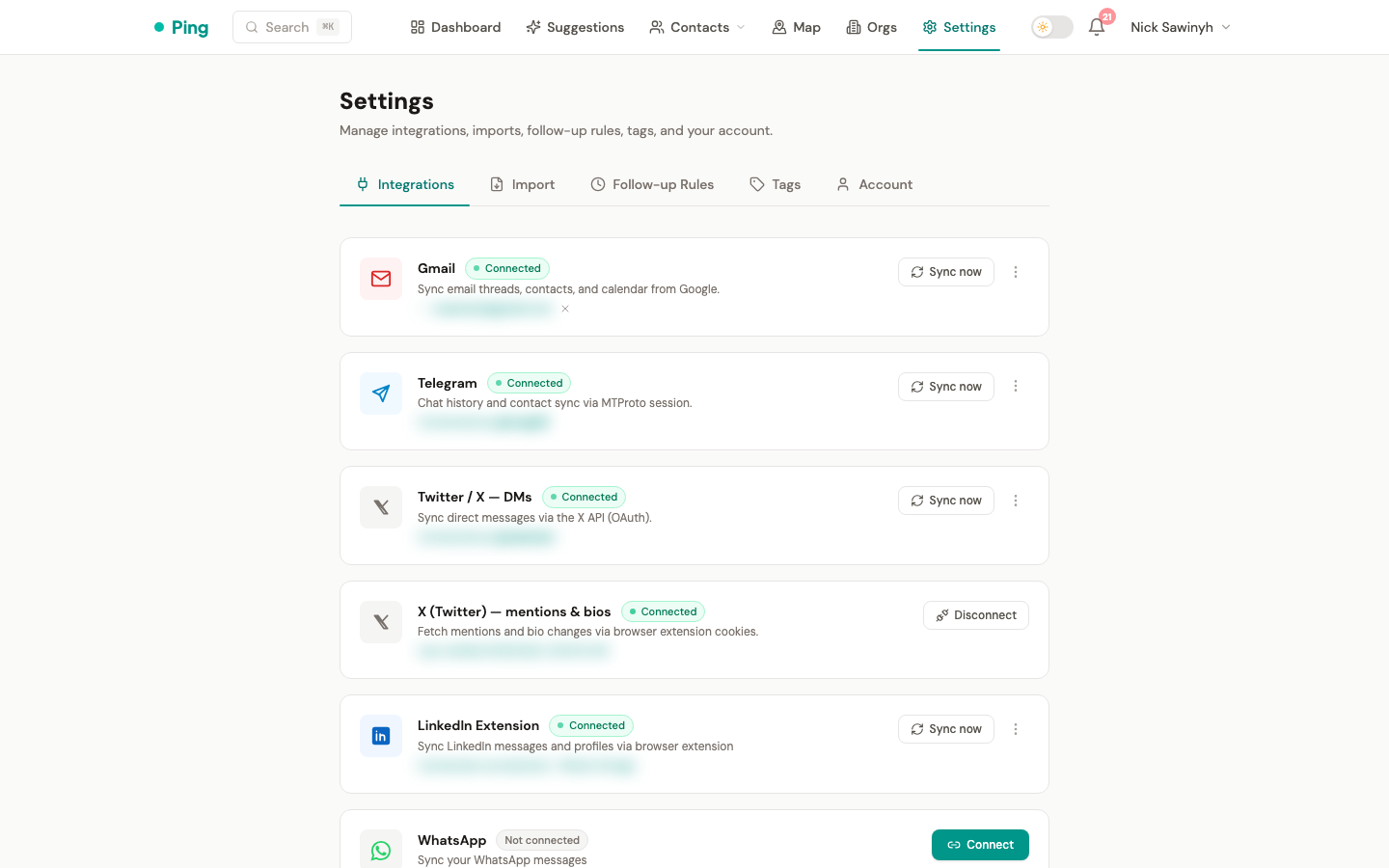
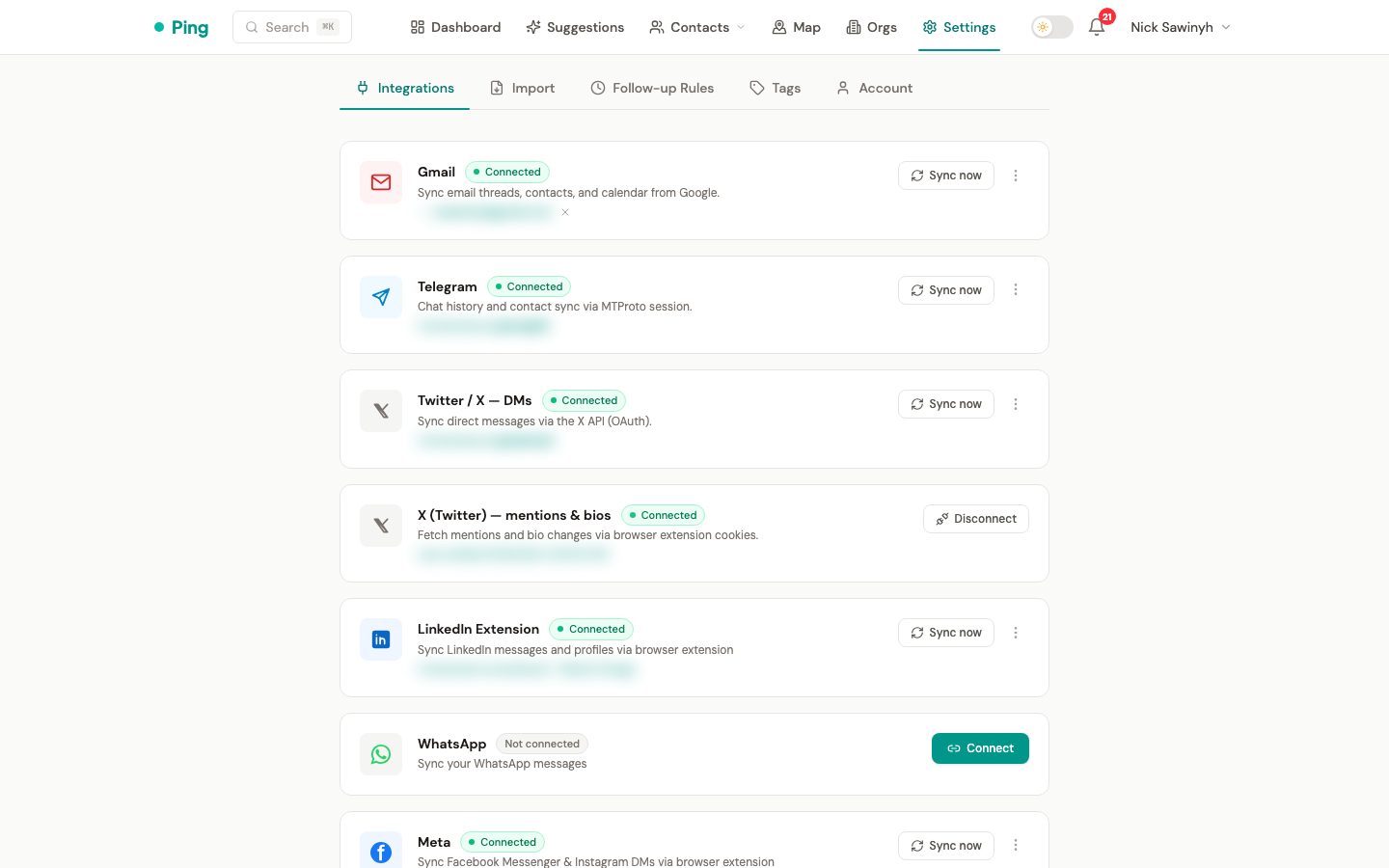
Gmail
- Connect / Disconnect -- initiates or revokes the Google OAuth flow.
- Connected email -- displays the Gmail address currently linked.
- Sync Contacts -- triggers a one-way import of Google Contacts into PingCRM.
- Sync Calendar -- imports Google Calendar events as meeting-type interactions.
- Sync Settings -- configure auto-sync schedule and meeting prep emails (enabled by default).
- Sync History -- view past sync events with record counts and error details.
Telegram
- Connect via phone -- enter your phone number to start the Telegram authentication flow.
- OTP verification -- enter the one-time code sent to your Telegram app.
- 2FA support -- if two-factor authentication is enabled on your Telegram account, you will be prompted for your password after OTP.
- Sync Chats -- imports Telegram DMs as interactions and discovers contacts from group memberships.
- Sync Settings -- configure auto-sync schedule and 2nd-tier contact sync.
- Sync History -- view past sync events with record counts and error details.
Twitter / X
- OAuth Connect / Disconnect -- initiates or revokes the Twitter OAuth 2.0 PKCE flow.
- Sync DMs and Mentions -- imports direct message conversations and @mention interactions.
- Sync Settings -- configure auto-sync schedule.
- Sync History -- view past sync events with record counts and error details.
LinkedIn (Chrome Extension)
- Connect via pairing code -- install the Chrome extension, generate a code in its popup, and enter it in Settings to pair.
- Connected status -- shows extension connection status and sync statistics (profiles synced, messages synced, last sync time).
- Disconnect -- revokes the extension token and clears pairing state.
See LinkedIn Integration for full details on the extension, Voyager sync, and suggestion buttons.
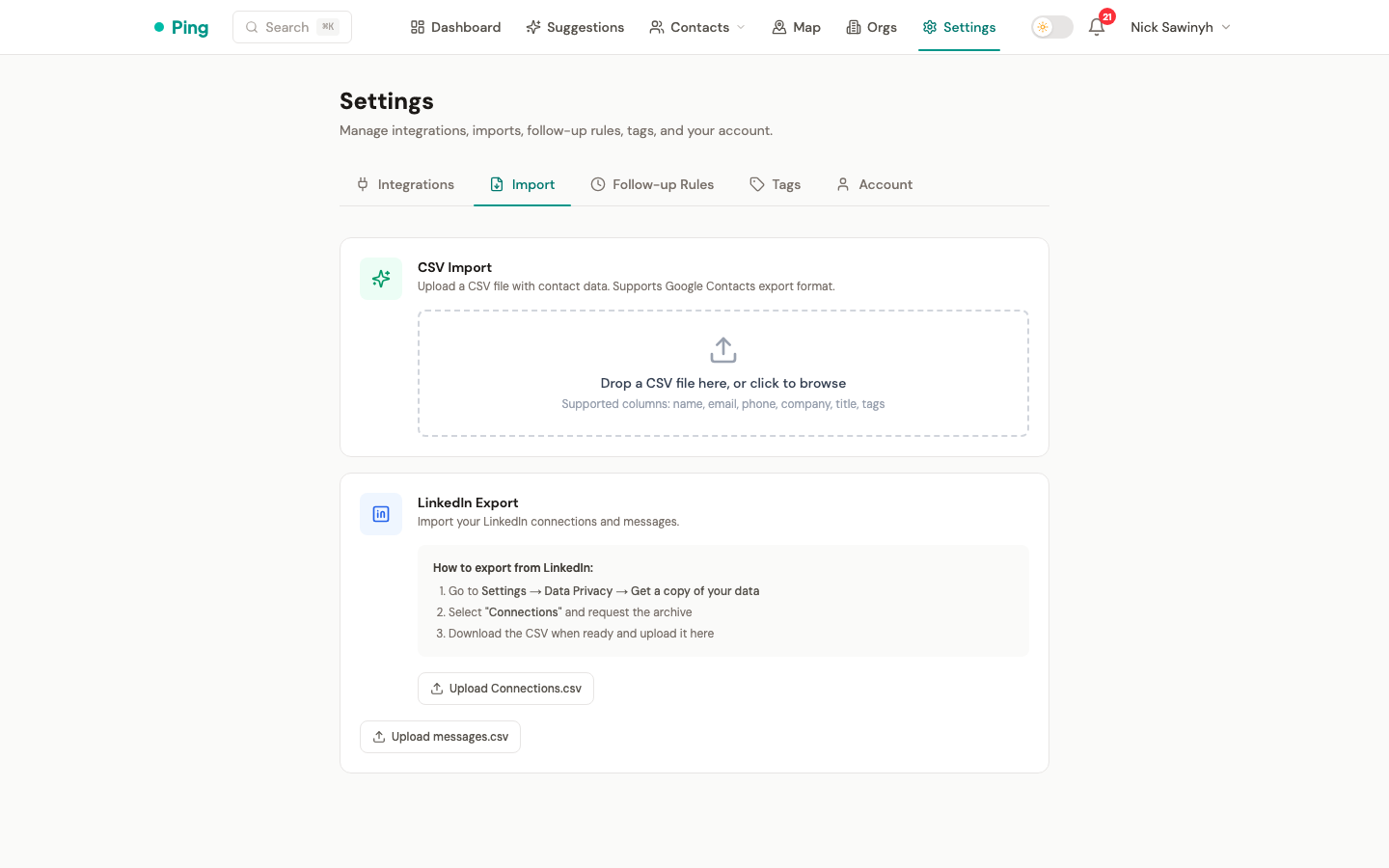
CSV Import
- Drag-and-drop upload -- drop a CSV file onto the import area or click to browse.
- LinkedIn CSV import -- supports the export format from LinkedIn's "Download your data" feature. Columns are mapped automatically to PingCRM contact fields.
- Imported contacts appear in the contacts list immediately and are eligible for identity resolution matching.
Follow-up Rules
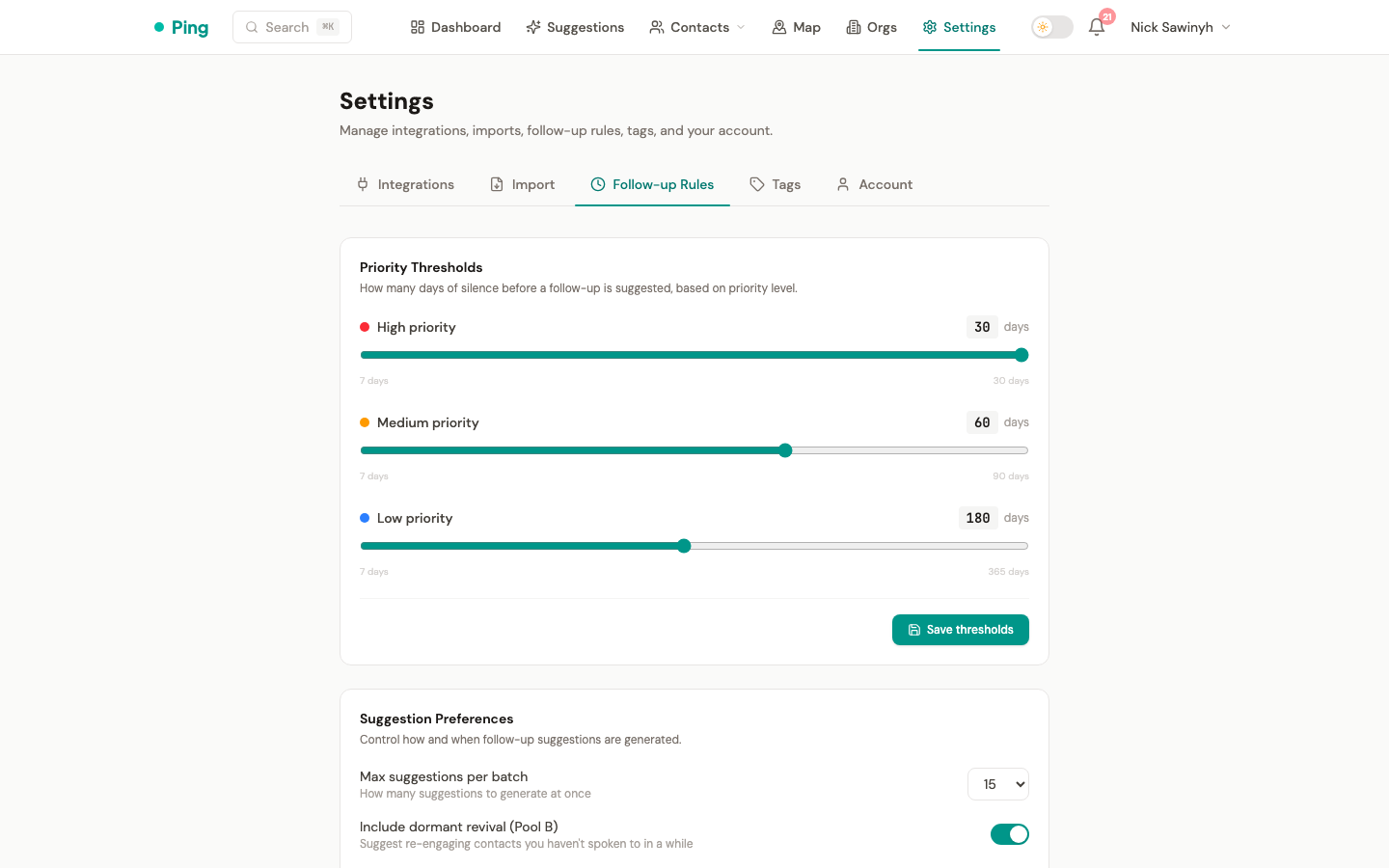
Configure the follow-up intervals per priority level. These control how often the suggestion engine recommends reaching out to contacts at each priority tier (default: high=30 days, medium=60 days, low=180 days). Values can range from 7 to 365 days.
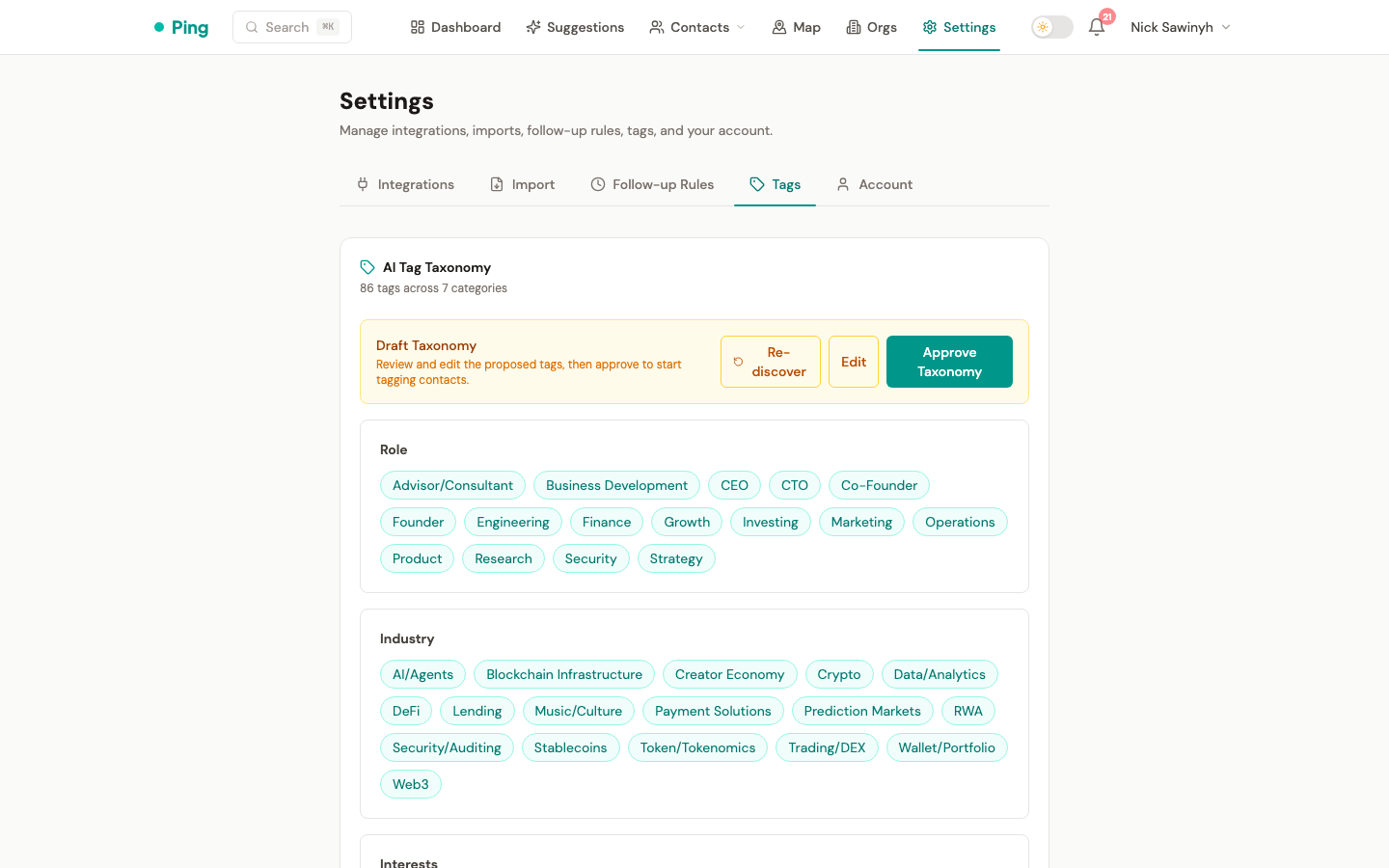
Tags
Manage the tag taxonomy used for organizing contacts. Tags can be generated automatically via LLM or applied manually. The taxonomy supports hierarchical categories.
MCP Access
Generate an API key for the MCP Server (Model Context Protocol). This allows AI clients like Claude Desktop, Cursor, and VS Code to query your CRM data.
- Generate API Key — creates a new key (shown once, copy it). Uses HMAC-SHA256 hashing for secure storage.
- Revoke — invalidates the key immediately.
- Status — shows whether a key is active.
See backend/mcp_server/README.md for client setup instructions.
Connection Status Badges
Each integration section shows a badge indicating its current state:
- Connected -- active and syncing on schedule.
- Disconnected -- no credentials stored; click Connect to set up.
- Error -- credentials expired or a sync failure occurred; reconnect to resolve.